Set up is fairly simple, you can just copy and paste the code from below into a Google Apps Script File, or click here to create your own copy by selecting File -> Make a Copy.
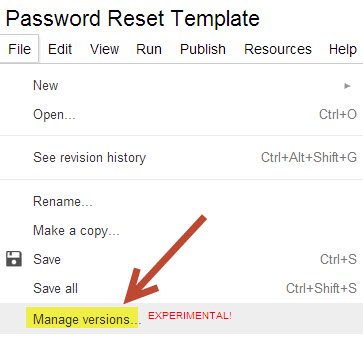
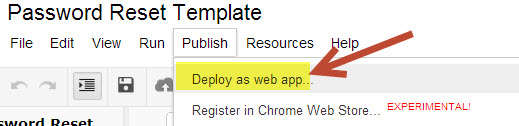
Then just click save new version. (You don't have to type anything in the box.) Now click Publish -> Deploy as web app.
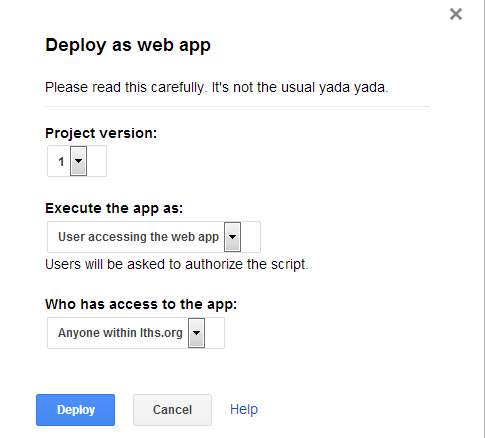
Choose the settings as shown below. (Of course the last one will show your domain, not lths.org)
Now the web app is deployed. Use the link that pops up to share it. The final step is to control which users have access to this script. You do this by granting access to the provisioning API in the Google Apps Control Panel. To do this you will need super admin rights to the control panel.
Start by going to the Domain Settings tab, then the Admin roles tab. Then click create new role. Give the new role a name. (If you prefer, you can use an existing user created role)

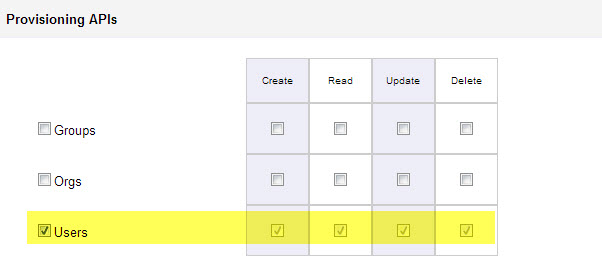
Within this role, scroll down to the bottom and look for the Provisioning API's section. Click users. (This should automatically check the 4 columns to the right.) Click save changes.
Finally, assign admins to this role. They will have to authorize the scrip the first time they use it.





